Jono Nourse
- 07 Oct, 2026
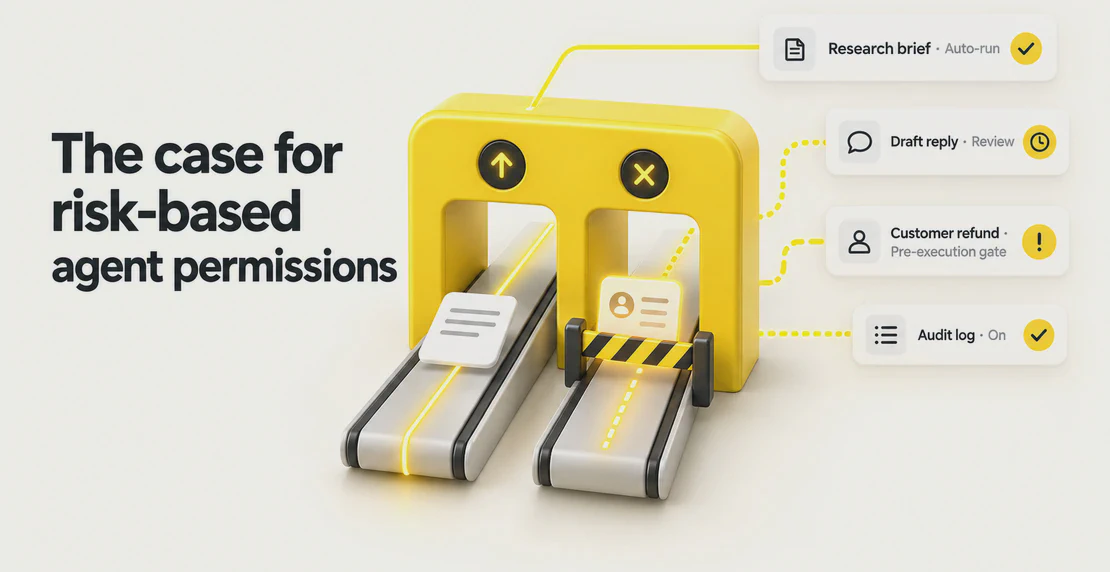
The Case for Risk-Based Agent Permissions
Approving every agent action leads to rubber-stamping, and treating drafts as safe misses real risk. This post shows how to set permissions by worst …
Read article
Jono Nourse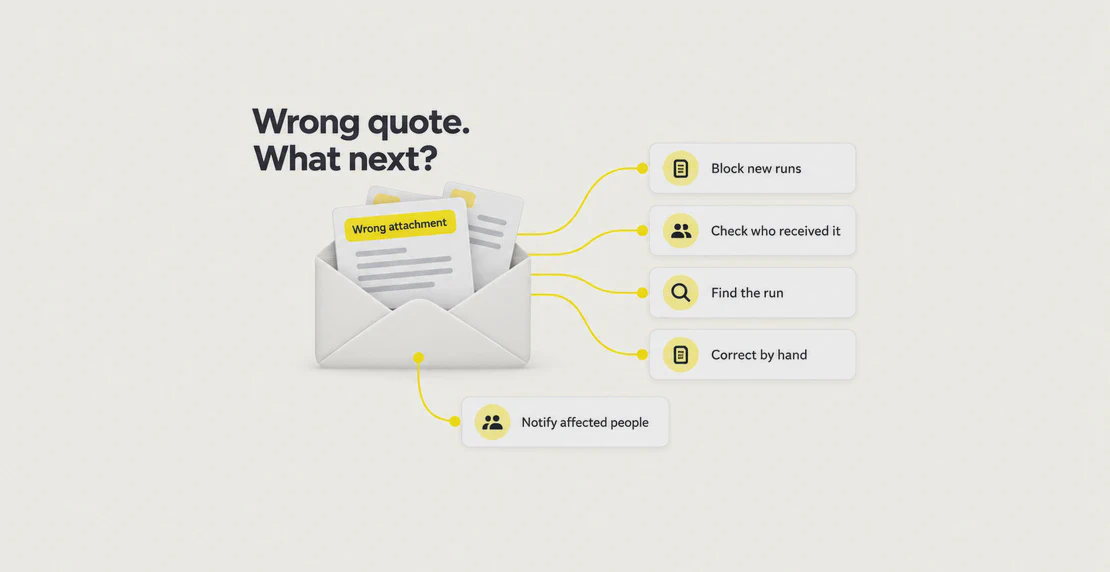
When your AI agent gets something wrong, your first hour has one job: limit the damage. Stop new runs, work out who and what the agent touched, fix what you can by hand, and tell the right people as you go. Leave the hunt for the root cause until later. Below is a short, plain AI incident response plan you can run without a security team, plus a checklist to copy. The example running through it is made up: an agent emails a customer the wrong quote attachment. These are suggested timeboxes for this guide.
What to do when your AI agent makes a mistake depends on the kind you have. There are three. Wrong content: the agent wrote something incorrect, but nothing was sent or changed. A wrong action or recipient: it sent an email, booked something, or updated a record it should not have. Personal or confidential information: a customer’s details or another company’s pricing, which can sit on top of either of the others.
You can often handle the first two yourself. When personal or confidential information is in play, bring in whoever looks after privacy at your organisation early. Treat financial or operational harm the same way, even when no personal data is involved.
Treat the minutes as a rough shape. Notify is the exception: it starts the moment you see a risk of harm or a privacy problem.
| Step | Suggested minutes | The question it answers |
|---|---|---|
| Stop | 0 to 10 | How do I block new runs and check what is still running? |
| Scope | 10 to 25 | Who and what did it touch? |
| Trace | 25 to 35 | Which run, and what went in? |
| Fix | 35 to 50 | What can I put right by hand? |
| Notify | Ongoing from discovery, review at 50 to 60 | Who needs to hear this, and who still needs an update? |
| Prevent | This week | What one change lowers the odds of a repeat? |
The example: an agent sends follow-up quote emails after sales calls. A customer replies, “This isn’t my quote.”
Name three people first. The agent owner knows how it is set up and can coordinate the controls with your admin. The customer contact speaks to anyone affected. The data owner looks after personal information. In a small team one person can hold two roles, as long as all three jobs are covered.
Disable the agent’s schedules, and turn off anything that can trigger it at the source, such as the outside service that calls it. Disabling future starts does not confirm that current runs have stopped. Check work already running and any requests accepted by outside systems.
For workflows, Autohive documents a Stop control for runs in progress (see the workflows docs). Use it, then confirm in the run history that the run ended. The scheduled jobs docs cover your schedules, including jobs the agent created. For a scheduled job mid-run, or a request another system already accepted, do not assume it stopped. Check its status and the outside system. A stopped run will not pull back an email that already went out.
You can also disconnect the app the agent acts through, or change its permissions, with the responsible admin, since other agents may share the connection. Removing the last connected account in a workspace can restore plan-level inheritance (access through a shared plan account), so do not assume access ended the instant you clicked. Check what the agent can still reach, watch the outside system for later activity, tell the agent owner, and write down the time.
List everyone and everything the agent touched: every recipient, record, and file. Then check earlier runs as well as the one that got reported. The customer who spotted it may not be the only one.
Two questions decide what happens next. Is it still happening? If the stop did not fully take, go back a step. And is personal or confidential information involved, or could money or operations be hurt? If yes, tell the data owner and your manager now.
Example: you check sent mail for this run and earlier ones. The wrong attachment shows another customer’s name and pricing, so the data owner hears straight away.
Keep this short. Find the run that caused the problem: the date, the time, and who or what started it. Note the instruction, input, and action behind it.
On Autohive, a workflow’s run history shows each node (each step), its output, timing, and status. Completed scheduled results appear as scheduled conversations with an execution status, and plan owners can see audit events in Autohive’s audit log. The docs do not spell out retention or export, so use the records you can reach and confirm effects in outside systems like sent mail and changed-record history.
Save today’s copy of the instructions, so a later fix does not change them. Keep what happened separate from what you think caused it, and treat the agent’s explanation as a lead you still need to confirm. Keep confidential data out of shared chat. For more, see this step-by-step look at a failed run and what belongs in an agent audit trail.
Example: two files in one folder had near-identical names. You write that down as the suspected cause.
Put right what you can, by hand. A changed record usually does not snap back by itself, and do not assume the agent or Autohive can roll it back.
Email recall sometimes works, depending on the system, so check whether it is supported and what happened, and do not rely on it. Plan on a manual fix: send the correct information, ask people to delete the wrong thing, and fix records one by one. Confirm nobody else has already sent a correction, and do not replay the original send batch.
Before anyone turns the agent back on, name who approves it. A person should approve the restart once the risky step is removed or the cause is addressed, and after a manual check that sends nothing to real recipients.
Example: you send the right quote, ask the customer to delete the wrong one, and confirm in the sent folder that only one correction went out.
Notification starts when you discover the problem. As soon as you see a risk of harm or a privacy problem, tell the data owner, your manager, and the team. Then the customer contact reaches out to the people who got the wrong thing, in plain words. Share on a need-to-know basis. Do not forward confidential details wider than the people who must act. At minute 50, review who still needs an update.
A good correction message is short and free of jargon: say what happened, give the right version, ask them to delete the wrong one without using or sharing it, and add a contact for questions.
Privacy has its own track, running alongside the rest. If personal information was involved, the data owner leads. They can read the Office of the Privacy Commissioner’s page on privacy breaches and decide what, if anything, needs to happen. This post is not legal advice, and it sets no legal duty, threshold, or deadline.
If you cannot fix everything within the hour, hand over: name an owner, list the open risks, and say when the next update goes out.
Once the hour is done, pick one change this week and write it down with a date to check it worked. The cited guidance supports the review process. The timings are our own. NIST’s voluntary generative AI profile and its manage playbook cover incident response, disengaging, and review. OWASP’s guidance on excessive agency says to give an agent less access and keep a person in the loop.
For most small teams, the strongest single change is narrower access or an approval step. On Autohive, Requires approval is a platform control on particular actions: it pauses the action before it runs and offers an approve or deny choice. Whoever approves should check the intended recipient and attachment first. A prompt line telling the agent to stop and ask is an instruction to the model. A configured action approval is a separate control. To go further, read the case for risk-based agent permissions and where approval steps earn their place.
Example: the team turns on Requires approval for the send-email action, renames quote files to cut mix-ups, and books a check in a week.
Paste this in and work down it. The brackets are tick boxes.
FIRST-HOUR CHECKLIST: AI AGENT MISTAKE
Date/time spotted: ______ Agent: ______ By: ______

STOP (0-10)
[ ] Disable schedules and any trigger at its source; verify it cannot start
[ ] Workflows: use Stop on runs in progress, confirm in run history
[ ] Check scheduled jobs already running and accepted external requests separately
[ ] If needed, disconnect or change permissions with the responsible admin, then verify access and external activity
[ ] Tell the agent owner. Note the time.

SCOPE (10-25)
[ ] What did it do wrong, in one sentence?
[ ] List everyone and everything it touched, including earlier runs
[ ] Personal data or financial/operational harm? Tell the data owner and manager now
[ ] Could it happen again right now?

TRACE (25-35)
[ ] Find the run: date, time, who or what started it
[ ] Save today's instructions; check sent mail and record history
[ ] Separate "what happened" from "what caused it"; keep confidential data out of shared chat

FIX (35-50)
[ ] Fix by hand; recall may not work, so do not rely on it
[ ] No duplicate correction; do not replay the send batch
[ ] Name who approves turning the agent back on

NOTIFY (ongoing, review 50-60)
[ ] Tell the data owner early if privacy is at risk, then your manager and team
[ ] Tell affected people in plain words; review who still needs an update
[ ] If unresolved: name an owner, list open risks, set the next update

PREVENT (this week)
[ ] Review what happened and what would have caught it
[ ] One change: narrower access, Requires approval, or a clearer instruction
[ ] Write it down; set a date to check it worked
Do we need a formal AI incident response plan?
For a small team, a short runbook and three named people is a fair start. That is our view. NIST’s framework is voluntary, so scale yours to your team.
Should we stop the agent or just disable its schedules?
Both, as they apply. Disabling the schedules or the outside trigger prevents new starts but says nothing about work already running. For workflows, use Stop on runs in progress, then check scheduled jobs and accepted requests separately.
Do we have to tell customers or the Privacy Commissioner?
If personal information was involved, that is the data owner’s call, working from the Office of the Privacy Commissioner’s guidance. We give no deadlines, thresholds, or legal advice. Tell the data owner as soon as you see the risk.
What should we do when our AI agent makes a mistake and we cannot tell what it did?
Stop new runs first, then look at the run history and scheduled conversations your platform keeps. Check outside systems too, like sent mail and record history, which show the real effects. If the detail sits in the audit log, ask a plan owner.
When is it safe to turn the agent back on?
Three tests, all editorial. The risky step is removed or the cause addressed. A named person approves the restart after a manual check that sends nothing to real recipients. And someone watches the first few runs. If any is missing, leave it off longer.
Copy the checklist, name your three people, and keep it somewhere you can reach in a hurry.

Written by
Jono is the Marketing Operations Lead at Autohive, bridging the gap between commercial strategy and AI-powered execution. With a passion for building systems that scale, he brings structure to complexity and turns marketing activity into measurable …
Jono NourseApproving every agent action leads to rubber-stamping, and treating drafts as safe misses real risk. This post shows how to set permissions by worst …
Read article Jono Nourse
Most AI pilots stall before they finish real work. This post breaks down five traits of agents that actually deliver, using JD Trask's overnight-work …
Read article