Written with AI from a Q&A with Reilly, who built Auto.
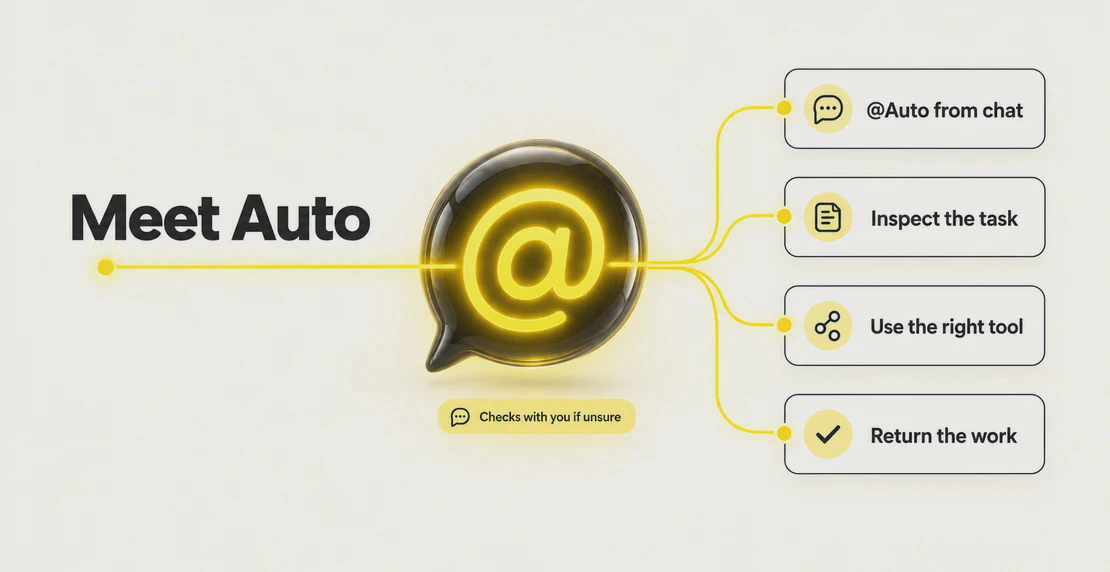
Auto is the general work agent in Autohive. You give it an open-ended task, and it reviews your workspace, builds agents and skills, debugs other agents, and makes files like reports and slide decks. Auto asks before it does anything uncertain or higher-risk, and it waits for your request instead of starting work on its own. It suits anyone who wants to get work done without building an agent first. This article covers what Auto does today, when to use it instead of a specialist agent, how approval works, and where its limits sit.
What is Auto?
Auto is a general work agent you talk to in plain language. It sits on your dashboard as the place to start broad or open-ended work. An agent is different from a fixed workflow. Anthropic describes workflows as systems that follow set code paths, while agents direct their own steps and tool use. Auto works the second way. It reads the request, works out what it needs, and gets on with the job.
“It’s a really good assistant, general knowledge worker, and something that can get work done for you now, instead of something that you have to manage yourself,” Reilly said.
New to the idea? Our beginner’s guide to AI agents covers the basics. Most agents in Autohive are built for one scoped job. Auto takes the requests that don’t fit a single template.
What can Auto do today?
Auto covers both one-off work and setup tasks, from reviewing your chats to building the agents you run later.
Review your workspace conversations
Auto can read the conversations you have access to in your workspace. Ask it to look back over recent chats and surface what you missed. Reilly suggests this as a first task. Point Auto at your history and let it find insights that you or your agents passed over.
Say you ran several agents last week. You ask Auto to review them and flag anything odd. It reads the threads and hands back a short summary, and you decide what to act on.
Create agents and skills
Auto can build new agents and skills while you chat with it. You describe the job, and it drafts the agent for you. You would get the same result if you built a custom agent by hand. A skill is a saved set of instructions that makes Auto handle a task the same way every time.
Suppose you keep asking for the same weekly report format. You mention it once, and Auto offers to store that format as a skill. You approve it, and later requests follow the same pattern.
Find the right connection when it needs one
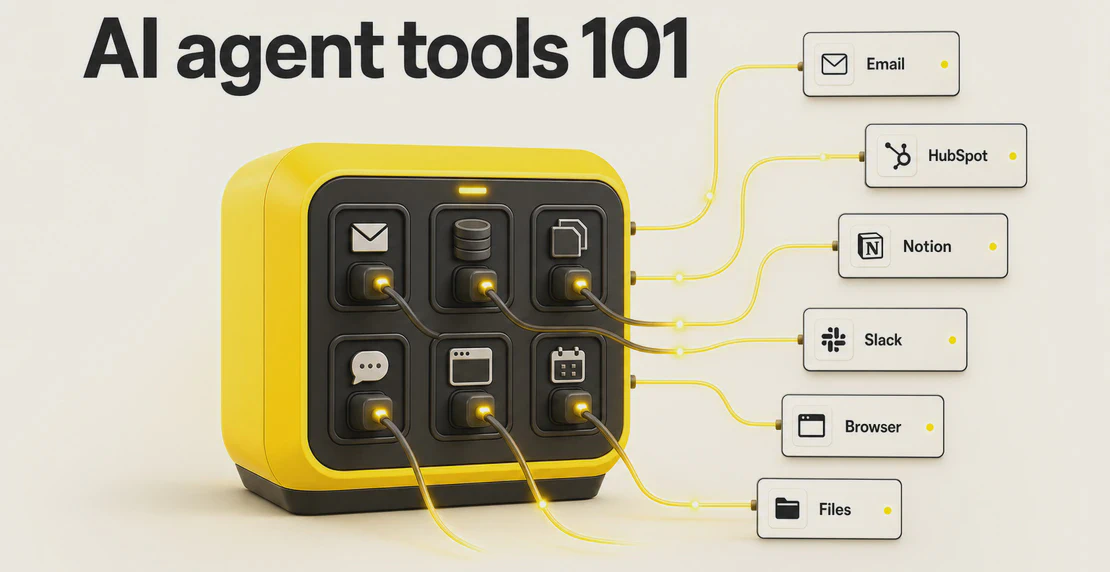
Auto brings in a connection when a task needs one. A connection is the link between Auto and an outside app, like your CRM or your code repository. Auto draws on connections from the Autohive Marketplace and the skills already in your workspace, often using the Model Context Protocol, an open standard for linking agents to outside apps. It loads only what a request needs instead of every integration at once.
Anthropic’s own example shows that finding tools on demand can use far less context than loading them all up front. Ask Auto to update a record in your CRM. It identifies the right connection, asks you to confirm anything uncertain or higher-risk, then runs the change and returns the result.
Debug other agents
Auto can inspect your other agents and help fix them. When one keeps failing, you point Auto at it and ask what went wrong. It reads the past runs, tests the connection, and reports the cause.
Reilly calls this the most useful thing he has seen Auto do. “I had one running on a schedule… I said, hey, can you look at the previous conversations, figure out what happened here? It brought in that connection dynamically, tested it out, and also read the conversations. Then it told me, hey, this is what’s wrong, here’s how to fix it,” Reilly said.
You get the diagnosis and the fix, and you can see what an agent did on each run. You choose whether to apply it.
Make files and creative work
Auto can produce finished files from a plain request. Ask for a report, a table, a slide deck, a PDF, or a Word document, and Auto builds it. It writes and runs its own code in a sandbox, a walled-off space that keeps that code separate from the rest of your workspace.
Auto handles creative work too. Reilly’s favorite request is to ask Auto to make a video and show what it can do. In one case, Auto pulled in Autohive brand guidance on its own while working on a video. You ask, Auto makes a draft, and you review it before it goes anywhere.
Call Auto from any conversation with @mention
Auto can join a conversation you are already in. You don’t have to leave an agent chat to reach it. Type the @ key, type Auto, and it appears.
“Let’s say you’re discussing with an agent and you see something wrong, you can mention Auto there, make a correction, or even say, hey, can you go get a fact check on this,” Reilly said.
Say an agent gives you a figure that looks off. You mention Auto in that thread and ask it to check. It reviews the claim and replies in place, so you keep working without switching screens.
When should you start with Auto, and when with a specialist agent?
Start with Auto for open-ended or new work. Choose a specialist agent when the job is scoped and repeats. Specialist agents handle narrow, repeatable tasks and can run on a schedule or a trigger. Auto takes the broad requests, and it can build those specialists for you.
Your situation
Where to start
Why
One-off or open-ended job
Auto
It handles varied work in one place
You need a new agent or skill
Auto
It can create both while you chat
An existing agent keeps getting something wrong
Auto
It can inspect runs and suggest a fix
A repeatable scheduled job
Specialist agent or workflow
These run deliberately on a timetable
For work that runs on its own timetable, set up a specialist agent with scheduled jobs. Auto stays reactive and acts when you ask.
Will Auto act without asking you?
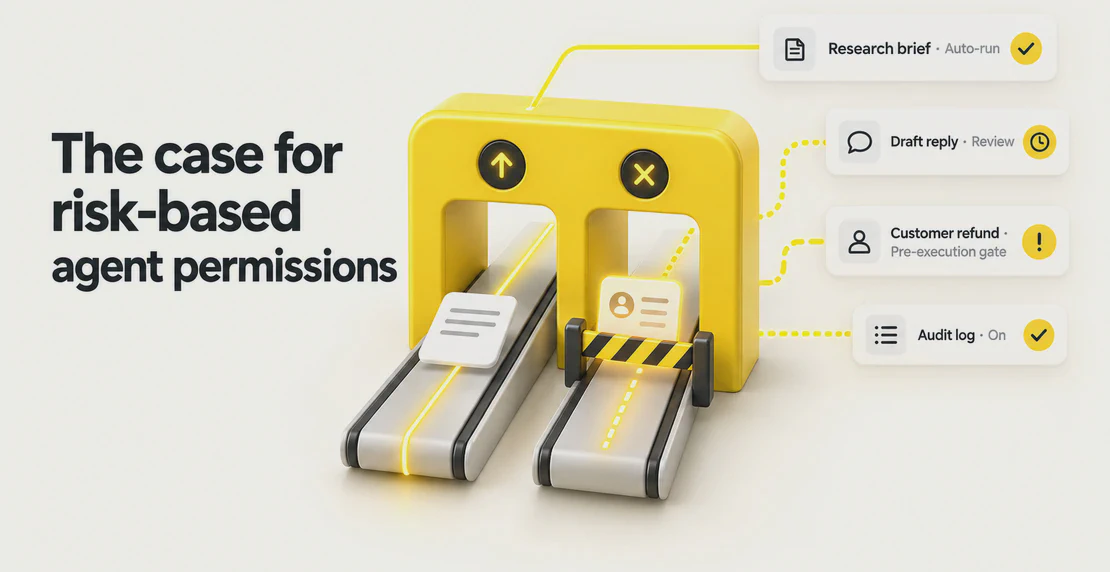
Auto asks you first when an action is uncertain or higher-risk. It shows you the proposed change and waits for a yes or no. You stay the human in the loop on the decisions that matter.
“Auto can create agents and create skills, which means it can connect tools to different agents. But you’re still in the loop there. Auto will surface to you saying, hey, I’m going to make this change. Would you like me to do that,” Reilly said.
Auto is reactive by design. It waits for your request, and it does not run scheduled or triggered work on its own. For work that runs on a timetable, set up a specialist agent or workflow instead. You commission a task, and it comes back with the result.
This matches where the wider field is heading. Microsoft framed its Copilot Cowork as a move from chat to action, with clear checkpoints before changes apply. Anthropic’s autonomy research argues that good oversight means stepping in when it matters, not approving every action. Auto aims for that balance.
What Auto doesn’t do yet
A few things Auto does not do today:
Auto works with the connections available in Autohive now. It cannot use an app that has no connection yet.
Auto does not call arbitrary APIs on its own. It works through available connections and your workspace skills.
Auto does not run scheduled or triggered work. For that, set up a specialist agent or workflow.
Auto does not control your local desktop, and it does not promise unlimited file sizes or every file type.
Multi-step media, data, and reasoning jobs can use more workspace credits than a simple chat.
Try Auto
Open Auto from your dashboard and talk to it like a coworker. Keep the first request simple and concrete.
Three ways to start:
“Review my recent conversations and tell me what I missed.”
“Build me an agent that drafts my weekly update.”
“Turn these notes into a formatted PDF.”
Reilly’s advice is to be direct and a little ambitious. “Just treat it like a really eager coworker to work with,” he said. Open Autohive and give Auto your first task.
Questions about Auto
Which tools and apps can Auto work with?
Auto works with the connections available in Autohive today and the skills already in your workspace. It does not call arbitrary APIs on its own. If an app has no connection yet, Auto cannot reach it.
Who can see what Auto reviews?
Auto reviews content you can access in your workspace. For how access and data are handled, see Autohive security. If you need exact detail for sensitive work, check your workspace settings or ask your admin first.
What happens if Auto gets something wrong?
Auto can make mistakes, like any agent. Point it at the problem and ask it to fix it. You stay the decision-maker, so you can reject a suggestion or ask it to try again. Higher-risk actions get a check with you before Auto acts.
Does Auto replace specialist agents?
No. Auto works alongside specialist agents. They handle scoped, repeatable jobs and scheduled runs, while Auto handles open-ended work and can build them for you. See multi-agent team setup for running them together.
Is Auto just a chatbot?
Auto chats with you, and it also does the work. You ask in plain language, and it returns finished output you can review.
Jono is the Marketing Operations Lead at Autohive, bridging the gap between commercial strategy and AI-powered execution. With a passion for building systems that scale, he brings structure to complexity and turns marketing activity into measurable …

Jono Nourse