Jono Nourse
- 04 Aug, 2026
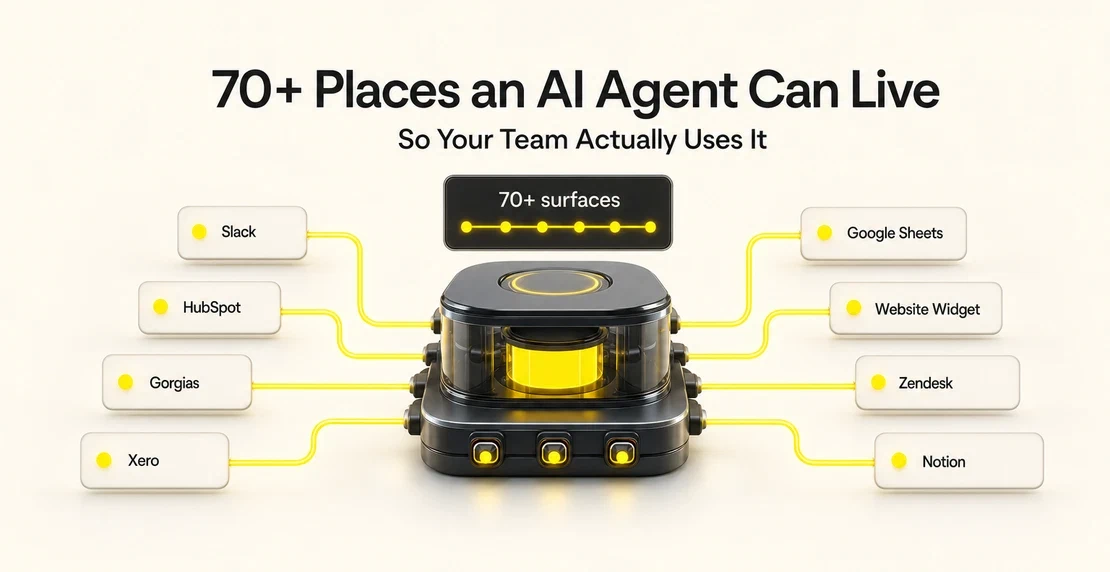
70+ Places an AI Agent Can Live (So Your Team Actually Uses It)
Agents built into the tools your team already uses get used consistently, while standalone agents tend to get ignored.
Read article
Jono Nourse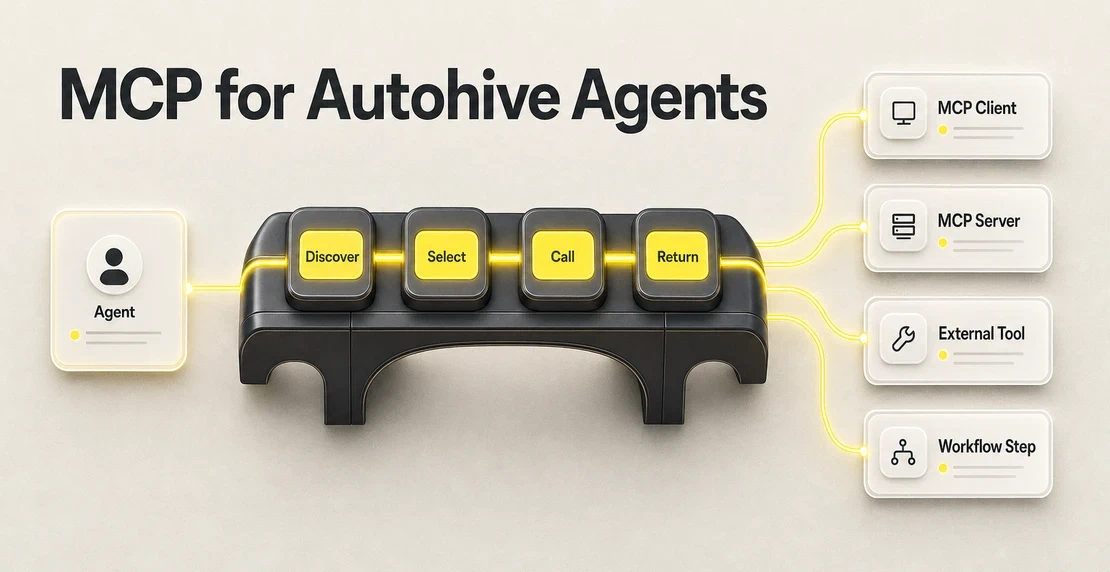
Ever tried to connect an AI agent to the tool your team actually uses, only to find the integration is not there yet? That is the problem Model Context Protocol (MCP) is built to solve. It gives tools a standard way to expose actions and context to AI agents, so teams do not need a custom connector for every system they want an agent to reach.
Autohive added MCP support earlier this year, with a simple idea behind it: if a service has a public remote MCP connection, you can register it in Autohive and make its tools available to your agents. If the phrase \u201Cremote MCP endpoint\u201D sounds technical, think of it as the web address Autohive uses to reach that tool\u2019s MCP server. You paste in the address, add auth details if the service needs them, and Autohive handles tool discovery from there. You can read the original announcement here: Autohive MCP support is here.
That changes the question for teams. Instead of asking whether Autohive has a native integration for a specific tool, you can ask whether that tool has a remote MCP endpoint. If it does, you can connect it, enable the tools your agents need, and keep risky actions behind approval.
Before MCP, every AI application that wanted to talk to an external tool had to build a custom connector from scratch. Ten AI apps connecting to ten tools meant a hundred one-off integrations to build and maintain. That doesn’t scale.
MCP replaces that with a single shared pattern. A tool provider builds one MCP server. An AI platform builds one MCP client. Any client can talk to any server. People compare it to USB-C: one port, many devices.
The protocol works like this. An MCP host is the AI application. Inside it, an MCP client connects to one server at a time. The server represents a tool or data source and tells the client what it can do, what inputs each action expects, and what it returns. When a user asks the agent to do something that needs that tool, the host calls it.
MCP servers exist for a wide range of tools: databases, CRMs, project trackers, developer platforms, search tools, e-commerce backends, marketing platforms, documentation systems, and internal business apps. Discovery is the real problem. There’s no single directory that covers everything.
Places worth searching:
Start with the name of the tool you want to connect. If that turns up nothing, search by category or use case.
Not every server is production-ready, and a handful are actively risky. When you find a candidate, check:
Three MCP security risks are worth knowing. Prompt injection is when an attacker embeds instructions in tool responses to hijack the agent. Tool poisoning is when a malicious server misrepresents what a tool does. And over-broad permissions let the agent act on more than it should. The safe approach is least privilege: give the agent access to what it needs and nothing else, require human approval for risky actions, and review connected servers regularly.
Autohive already has a native integrations library covering Slack, Google Workspace, HubSpot, Shopify, Stripe, GitHub, Xero, Notion, and others. MCP extends that for tools outside the native library, as long as the service has a public remote MCP connection.
If you want the full setup walkthrough, including the step-by-step video, start with our Autohive MCP support announcement. It shows how to register an MCP server in Autohive and what details you need before you begin.
The short version is this: you need the MCP server address, often called the endpoint URL. That is just the web address Autohive uses to reach the MCP server. You may also need authentication details, such as a bearer token or OAuth credentials, depending on how the service protects access.
Once the server is registered, Autohive discovers the tools it exposes. From there, you can add those tools to an agent through agent capabilities, turn individual tools on or off, and use the Requires approval flag for anything that writes, deletes, sends, or changes data.
That is the part worth paying attention to. MCP can make a lot more tools available to your agents, but you still control which tools each agent can use.
MCP works in workflows, and in chat. Tools connected via MCP are available inside Autohive workflows as well as chat-based agents. If you have a repeating process that needs to pull from a custom database or push to an internal system, build that as an automated workflow step instead of running it as a one-off conversation.
MCP versus API Call. Autohive also has an API Call integration that lets an agent hit any HTTP endpoint directly. That works well for one-off requests or early prototyping. For production tool access, MCP is the better option. Servers are registered centrally, tools are discovered automatically, and the connection stays consistent across agents.
Skills sit above MCP. An MCP server gives an agent the ability to call a tool. A skill tells the agent how to use it well: what to check first, what to log, when to escalate. If you want an agent to follow a specific process every time it calls a tool, encode that as a skill. The two layers work together.
If you’re ready to get started, creating your first agent and the integrations overview are good places to begin.

Written by
Jono is the Marketing Operations Lead at Autohive, bridging the gap between commercial strategy and AI-powered execution. With a passion for building systems that scale, he brings structure to complexity and turns marketing activity into measurable …
Jono NourseAgents built into the tools your team already uses get used consistently, while standalone agents tend to get ignored.
Read article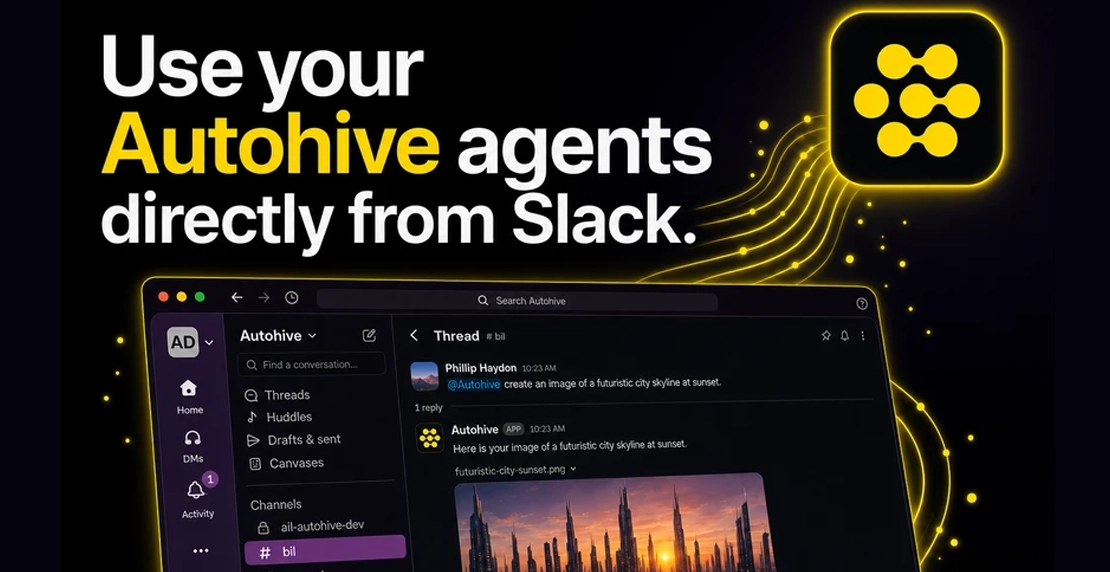 Jono Nourse
Autohive now connects directly to Slack. Teams can use agents inside channels and threads, pass files and images both ways, and keep agent work …
Read article